
How It Works
Start broad. Inspect deeply.
Optimize what matters.
The recommended workflow starts with Batch Analysis, then moves into the main designer for inspection, edits, Suggest, Design and Optimize, and final reporting.
Batch Analysis is the starting point, not the side tool.
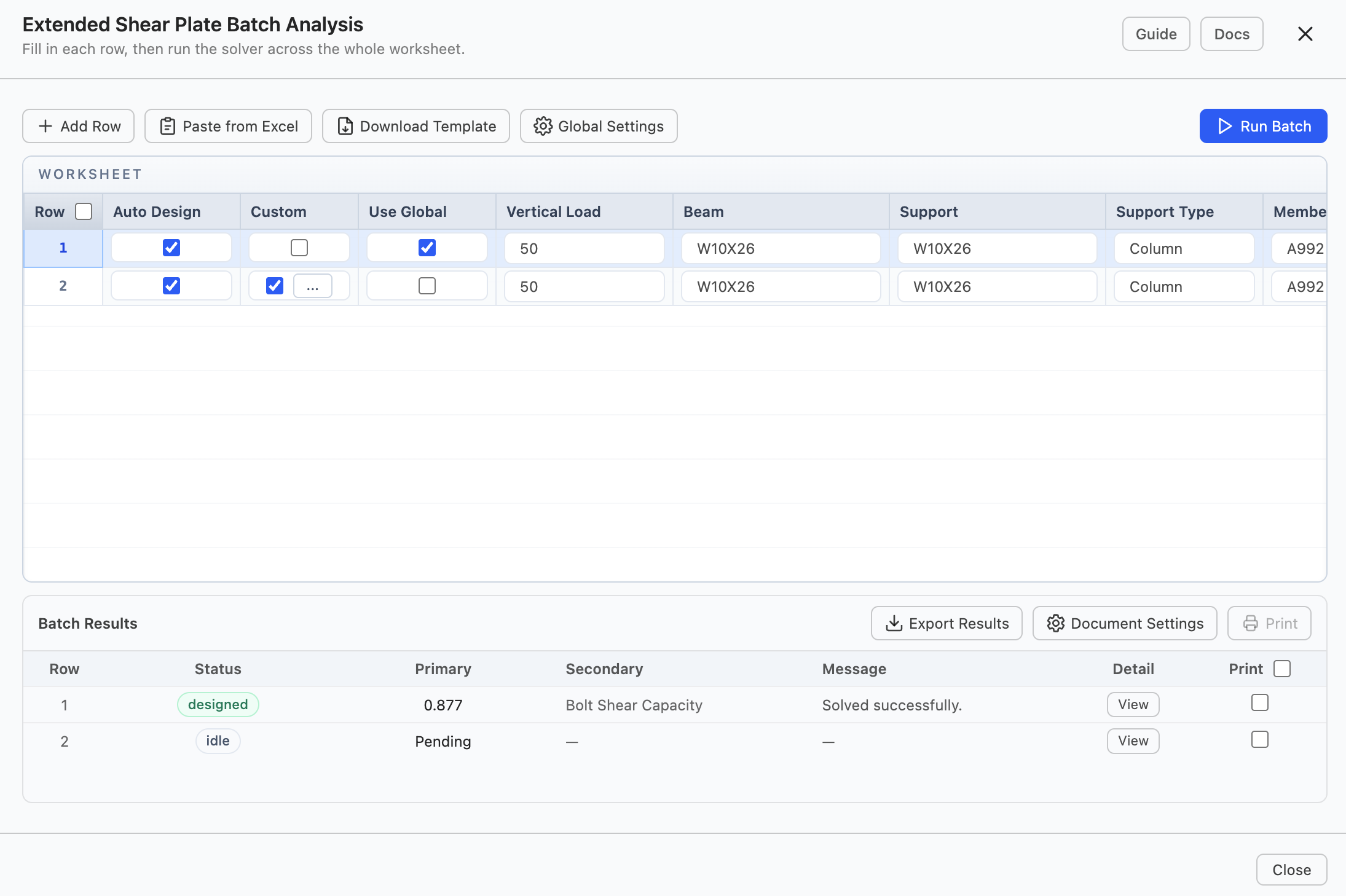
Use it to explore many design cases quickly. Then bring the promising rows into the live designer, review the drawing and calculations, edit the details, and send the refined values back to the worksheet.
Start with Batch Analysis
Begin with a worksheet of the cases you want to compare: loads, member sizes, plate geometry, bolt options, or design preferences. Run the batch once and let AutoDesign separate the passing, failing, canceled, and unfinished rows.
- Paste rows from Excel or start from the template
- Use Auto Design per row when values should be found automatically
- Re-run only rows that failed, were canceled, or have not finished
Send rows into the main designer
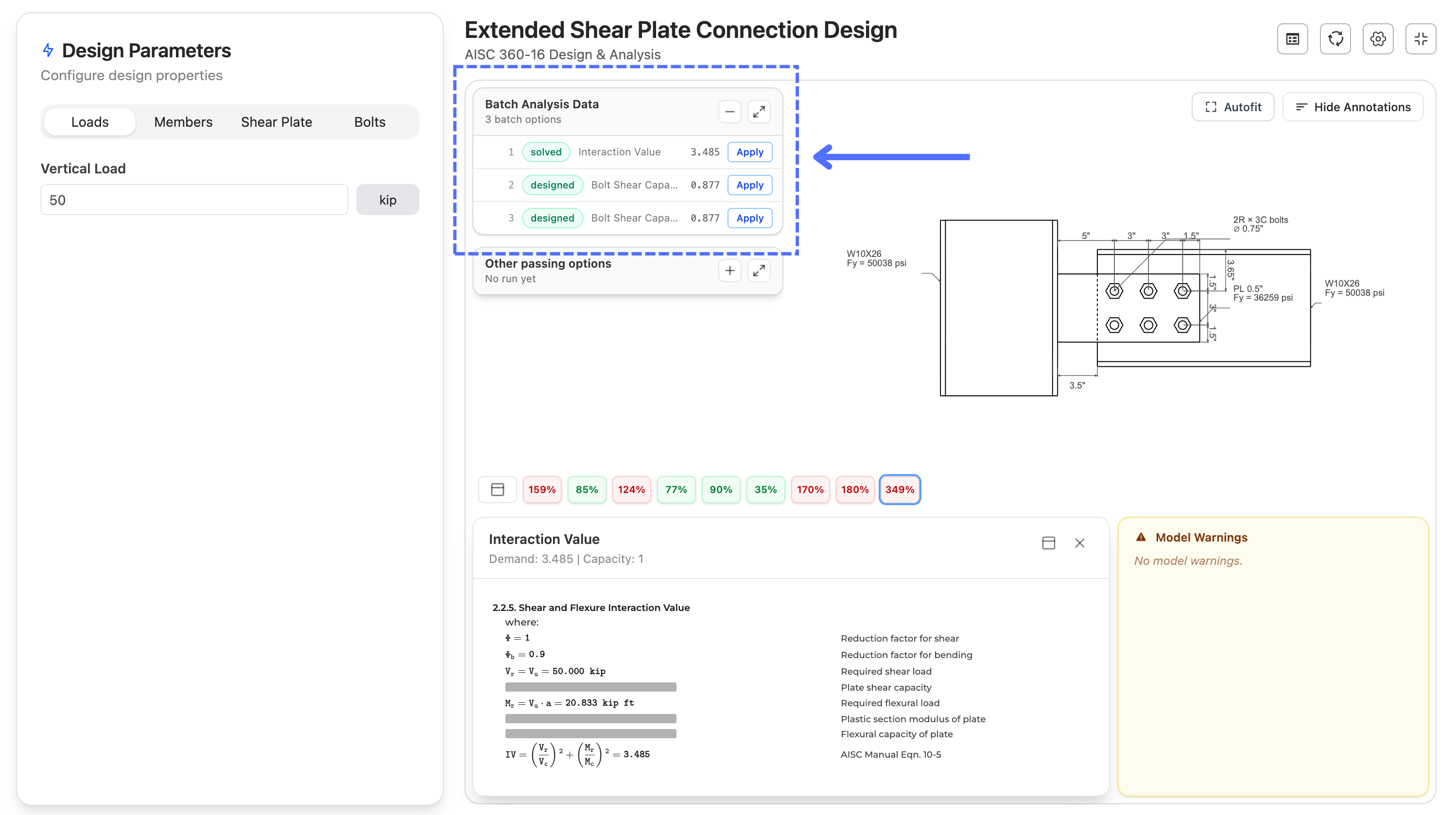
After the batch finishes, solved rows appear beside the live designer. Click a row to load its exact inputs into the main workspace, then inspect the drawing, warnings, calculations, and governing checks in context.
- Load any solved batch row into the designer
- Use fullscreen when the drawing and warnings need more room
- Disconnect from the row when you want to experiment freely
Edit details where the issue is visible
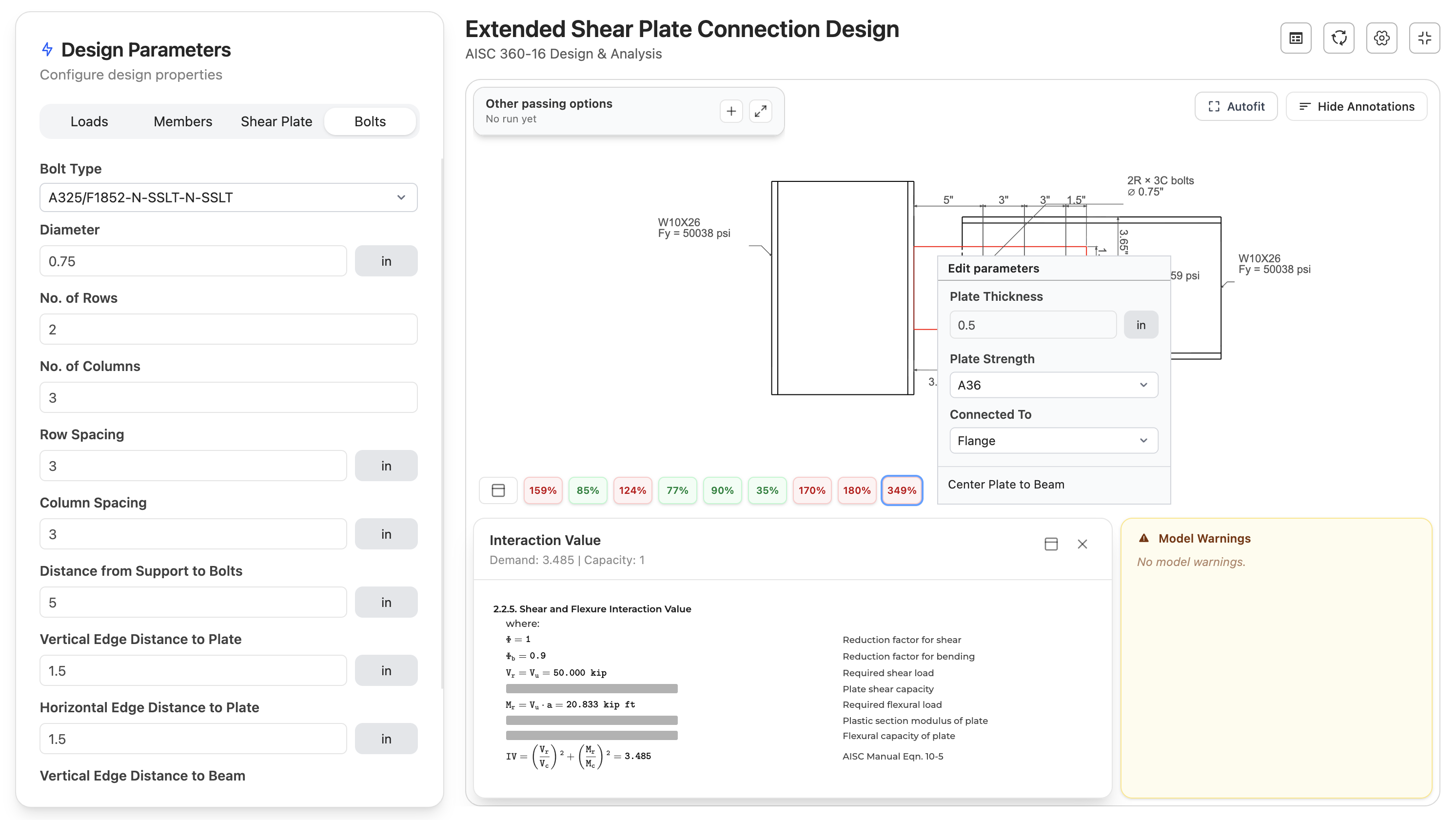
Use the normal inputs, the synced drawing, Suggest, or Design and Optimize to refine the design. When a batch row is associated with the current design, you can push the edited inputs back to the worksheet instead of retyping them.
- Right-click drawing elements to edit connected parameters
- Review limit-state calculations from the result rail
Use Suggest to choose a smarter search space
Suggest is the quick pre-search. It looks at the current failing checks, tries parameter combinations, and proposes selected parameters and bounds that are more likely to produce a passing design.
- Starts from the failing limit states and selected parameters
- Can widen the selected parameter set when the first search is too narrow
- Prefills ranges so you can review them before optimizing
Run Design and Optimize
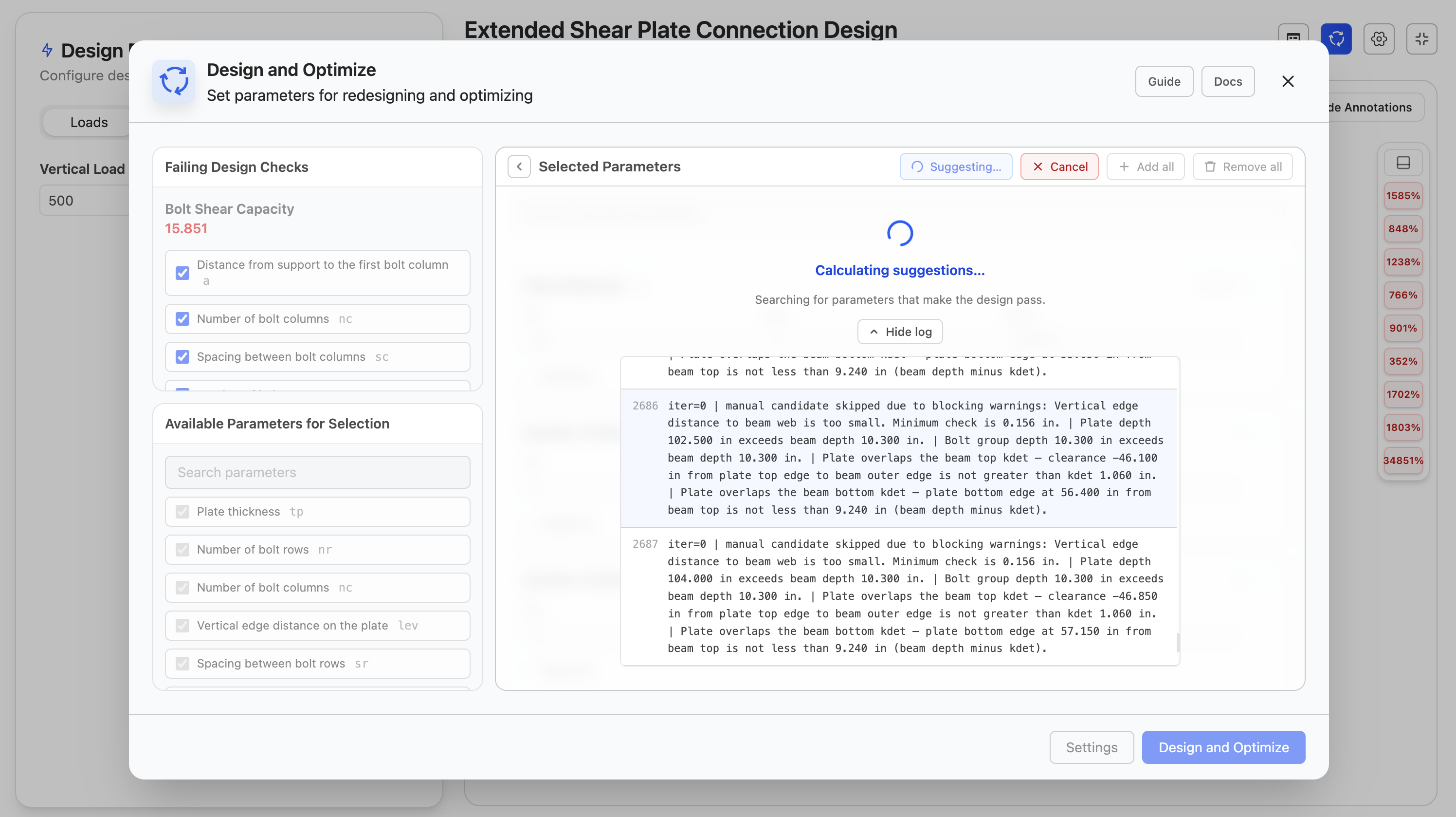
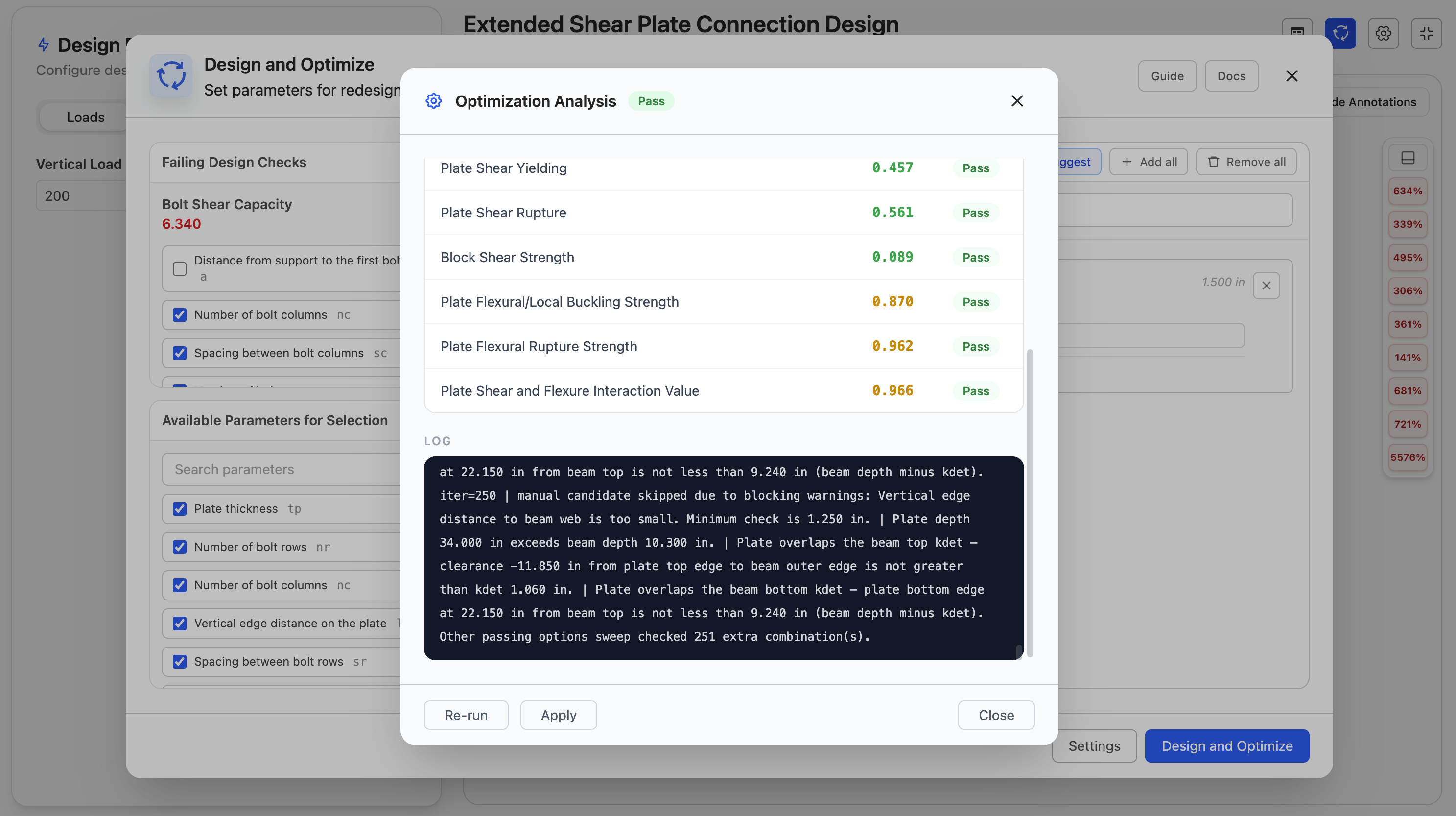
Design and Optimize runs the deeper search. It redesigns failing inputs until the design passes, then optimizes within your bounds so the result is not just passing, but efficient.
- Uses your selected numeric ranges and list options
- Reports pass, infeasible, or no-solution outcomes
- Can be canceled during long runs and re-run with adjusted settings
Compare alternatives and print the final set
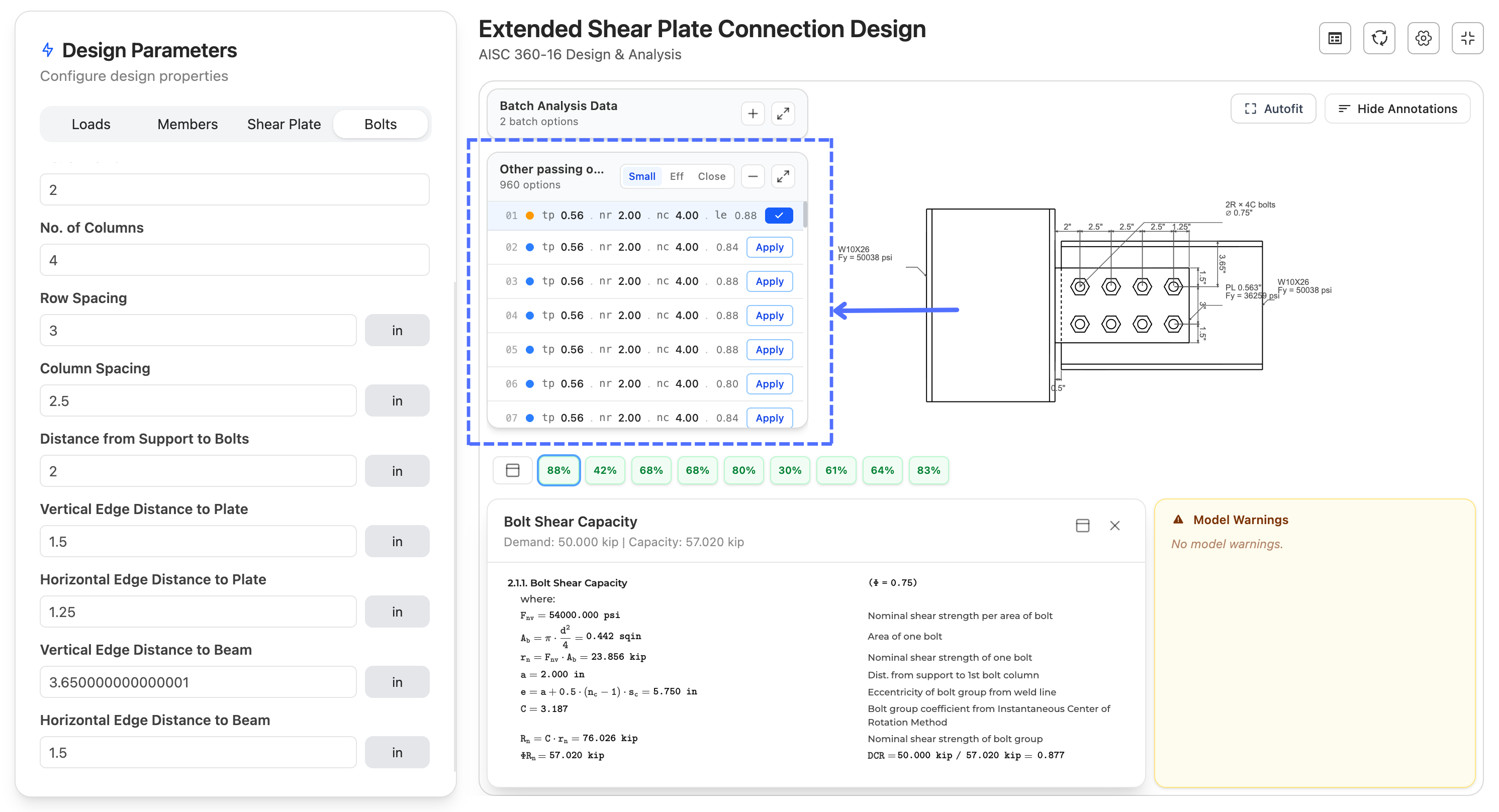
When the optimizer finds passing designs, the other-passing-options panel helps you compare nearby alternatives. Back in Batch Analysis, select the rows you want and print combined or separate calculation reports.
- Sort alternatives by efficiency, closeness, or parameter values
- Apply an alternative back to the live designer
- Print only the batch rows selected for reporting
Calculation Agnostic
Every design is built from checks, not hard-coded disciplines.
AutoDesign does not need to know the specifics of the design checks. Each design check is modeled as a general block. The engine uses the blocks without fully knowing its content, runs them, compares their pass/fail state, and assembles the complete design workflow around the results.
Inputs
The values the user controls: loads, geometry, sizes, materials, settings, or discipline-specific options.
Checks
Each required verification is treated as a block with its own inputs, result, pass/fail state, and calculation trail.
Warnings
Rules that protect the model from invalid combinations, missing assumptions, or conditions that need review.
Outputs
The drawing, result summary, calculation report, and batch table are assembled from the same block results.
Same engine
Batch Analysis, Suggest, optimization, drawings, and reports can work from the same block contract.
Different formulas
The calculation logic can change by discipline while the surrounding workflow stays familiar.
Complete design
A design is complete when all required blocks have valid inputs and their checks satisfy the target criteria.
Ready to spend your time on engineering, not data entry?
Jump straight into the live designer or create a free account to save your work.